
Nobody said Linux video editing was going to be easy… Here’s a full account of everything that went wrong — and the fixes
Act 1: “Your GPU Memory Is Full” (It Was Not Full)
It started with the classic DaVinci Resolve welcome message on Linux: “Your GPU memory is full.”
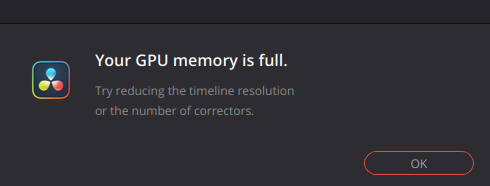
A bold claim, given that nvidia-smi showed 106MB used out of 8188MB on a perfectly healthy RTX 4070. Resolve was, in technical terms, lying.
The fix that actually worked was launching Resolve with explicit CUDA environment variables:
__NV_PRIME_RENDER_OFFLOAD=1 __GLX_VENDOR_LIBRARY_NAME=nvidia /opt/resolve/bin/resolveWhy does this fix – recommended by a user in Blackmagic’s own forum – work? Because Resolve on Linux sometimes fails to find the right GPU without a firm nudge.So this command is like a strongly worded suggestion.
Also note: my GPU processing mode in Preferences was wrongly set to OpenCL instead of CUDA.
Act 2: Video Files That Refused to Have Video
With the GPU error gone, it was time to import some footage. MP4 and MKV files imported fine — except they had no video. Just audio, playing over a grey rectangle. Very avant-garde, but not ideal for editing, as others have noted.
Claude had a simple explanation for me: DaVinci Resolve free on Linux cannot decode H.264 or H.265. Hardware decode is a Resolve Studio (paid) exclusive. The Decode Options preferences screen on version 20 confirms this by simply not having the relevant checkbox at all.
The solution: pay up. Or… transcode your footage to DNxHR, a codec Resolve handles natively, using FFmpeg:
ffmpeg -i input.mp4 \
  -c:v dnxhd -profile:v dnxhr_hq -pix_fmt yuv422p \
  -c:a pcm_s16le \
  output_EDIT.mov
Don’t ask me what all those commands mean! It just works. The video has video now.
Act 3: The App Froze, Took the Second Monitor Hostage, and Wouldn’t Give It Back
While poking around preferences, Resolve froze completely. The second monitor became an artifact — a zombie window with a frozen cursor, completely unresponsive, while the real cursor moved freely on the primary display.
pkill -9 resolve killed the process, but the ghost window remained. Painted on the screen like a bad memory. Eventually the nuclear option worked: unplugging and replugging the HDMI cable. Sometimes the most elegant solution is the simplest one.
Act 4: Making It All Less Annoying to Start
Typing a 70-character environment variable command every time you want to edit video is not a sustainable lifestyle. So we automated two things:
A launcher script — a simple shell script that wraps the long command, installable as just resolve on your PATH.
A conversion tool — resolve-convert, a script that takes any video file and spits out a Resolve-compatible .mov next to it. Drag a file in, press Enter, done.
Another LLM – let’s call it “Gem” – peer-reviewed the conversion script and raised eight issues with it, some valid (ffmpeg consuming stdin, DNxHR being picky about non-standard resolutions), some less so.
Act 5: The Dock Icon Fix That Took Out VS Code
The final boss: making the dock icon launch Resolve correctly without needing a terminal. The fix is to override the .desktop file in ~/.local/share/applications with the correct Exec= line including the GPU environment variables.
Did that. Then, in a moment of misplaced confidence, ran killall -HUP gnome-shell to refresh the app cache. On X11, this restarts the compositor, which closes windows on secondary displays. VS Code, which was on the secondary display, did not survive.
The correct command — update-desktop-database ~/.local/share/applications — does the same job without the collateral damage. Claude apologized, “Lesson learned. Sorry about your VS Code windows.”
written with an assist from Claude AI.